
Simple Steps to Fix a Printer That Will Not Print
There are few things more irritating than a printer that sits there with its lights blinking, quietly refusing to do the one job it exists for. You have sent the document, the computer says it is printing, and yet the tray stays empty. Before you start wading through obscure settings menus or hunting for a replacement, take a breath. The overwhelming majority of printing problems come down to a handful of very ordinary causes, and most take only a few minutes to sort out.
Work through the steps below in order, starting with the simplest checks and moving to the more involved ones. In most cases you will be printing again well before you reach the end.
Start With Paper, Ink and Power
It sounds too obvious to mention, but a surprising number of "broken" printers are simply out of paper, out of ink, or not properly switched on. Check the tray first: the paper should sit flat and square, with the guides pushed gently against the stack. Sheets that are damp, curled or stuck together will often feed badly or trigger a jam warning before anything has actually jammed.
Next, look at the ink or toner. Even if you print rarely, cartridges can dry out or a chip can report a level that has nothing to do with how much ink is really left. A cartridge that has sat unused for months may need replacing even when the indicator still looks healthy.
One further quirk worth knowing: many colour printers will refuse to print a plain black document if any one of the colour cartridges is empty. If you are trying to print black text and nothing happens, try a document that uses colour as well, or replace the empty cartridge. It can feel illogical, but it is entirely normal behaviour.
- Make sure the printer is switched on at the wall, not just at the front panel.
- Close every door, cover and jam-access panel firmly — a slightly ajar flap can stop printing silently.
- Fill the tray to a sensible level rather than cramming it full.
- Pull out any part-printed sheet and check for torn fragments near the rollers.
Check the Cable, the Wi-Fi and the Printer's Status
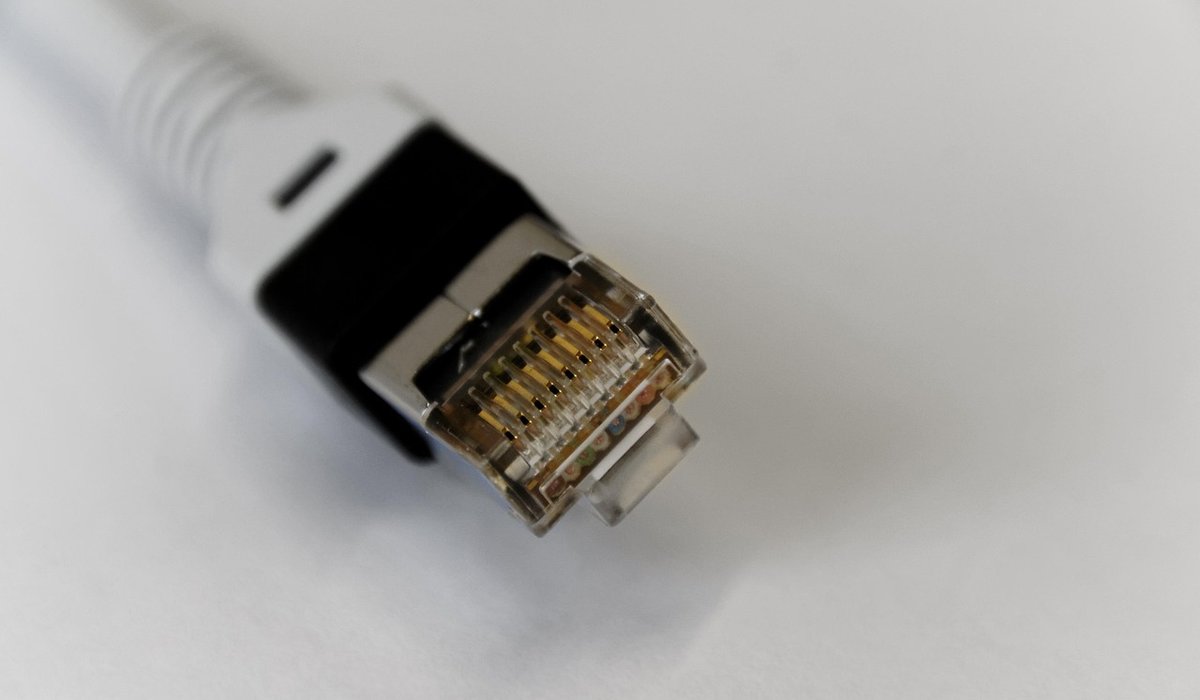
If you connect by cable, unplug it at both ends and plug it back in firmly. Try a different port on the computer, and plug it in directly rather than through a hub or extension lead. A cable that has been kicked or bent can fail intermittently, which makes the problem look far more mysterious than it is.
For wireless printers, confirm that the printer and the computer are on the same network. This is especially important if you have a router that broadcasts separate bands, as some printers only work on the older, slower one. If in doubt, print a network status page from the printer's own control panel — it will show the address it has been given and whether it has a solid connection. Moving the printer closer to the router for a few minutes is a quick way to test whether signal strength is the culprit.
Then check the printer's status on the computer itself. Open the print queue and look for wording such as "offline", "paused" or "use printer offline". If any of those appear, switch them off. Printers can be marked offline by a failed job and will simply stay that way until told otherwise.
Clear the Print Queue Before Anything Else
A single stuck document at the top of the queue will block everything behind it, and a corrupted job can keep the whole queue jammed indefinitely. Open the queue and cancel every document in it. If one refuses to disappear, restart the computer and try again.
If the stubborn job survives a restart, the print spooler needs attention. The spooler is the background service that passes documents from your programs to the printer. When it gets stuck, nothing prints no matter what you do. On most systems you can find it in the list of services, stop it, wait a few seconds, and start it again. A full restart of the computer achieves much the same thing, so try that first if services feel unfamiliar.
Reinstall the Driver (It Is Less Scary Than It Sounds)
The driver is the translator between your computer and your printer. When an operating system update arrives, or when a driver installation goes wrong halfway through, the translator can fall out of step and the printer becomes deaf to instructions.
- Remove the printer from your list of devices.
- Uninstall the printer's software from your list of installed programs.
- Restart the computer so nothing is left half-loaded.
- Download the current driver for your exact model and operating system version, then install it and add the printer again.
Use the specific driver for your model where one exists rather than a generic universal one; the tailored version knows about features the generic version does not. Before all that, though, try switching the printer off at the wall for thirty seconds while you restart the computer. That combination clears an astonishing number of faults on its own.
Try a Test Page, Then a Different Program
This is where you narrow down what is actually going wrong. Print a test page from the printer's own settings or utility. If that works, the hardware is fine and the problem lies in software. If it fails too, the printer itself needs attention.
Then try printing the same document from a different program, and try a plain, simple text document instead. Very large images, complex layouts and damaged PDF files can all make a printer hang or spit out an error. If a simple document prints and a complicated one does not, you have found your answer.
If you have a second computer, tablet or phone, send a job from that. When it prints successfully, the fault rests with the original computer's setup rather than the printer.
Knowing When to Stop
Some symptoms point to a genuine hardware fault: grinding noises, repeated jams in the same place, streaks down every page, or an error code that returns after a restart. For inkjets, running the printer's built-in head-cleaning cycle once or twice is worth trying, and it often restores faded or missing colour. Paper feed rollers wear out over time and can be cleaned gently with a lint-free cloth, though replacement is a job for a repairer.
Call for help if the printer is still under warranty, if the error code persists after reinstalling the driver, or if the repair involves parts such as a fuser or drum unit. On a cheap printer that is well out of warranty, be honest about the sums: if a repair costs half the price of a new machine, put the money towards a replacement instead.
Finally, keep a note of whatever solved it this time. The same fix usually works again, and knowing you have a routine to fall back on turns a stressful afternoon into a ten-minute tidy-up. Give it fifteen minutes, work through the steps methodically from top to bottom, and only then consider shopping for a new one.


A clear folder structure saves time and reduces duplicate files. Use consistent names, regular clean-ups and search tools to stay organised.
Refurbished machines can offer good value when bought carefully. Check battery health, warranty terms and return policy before making a purchase.
Dust build-up and heavy workloads make fans louder. Clean vents carefully, improve airflow and check which programmes use the most processor time.
Automatic backups protect recent work without daily effort. Choose a schedule, test a restore and keep the drive disconnected when not needed.